Video to URL: a practical guide to uploading and sharing in 2026
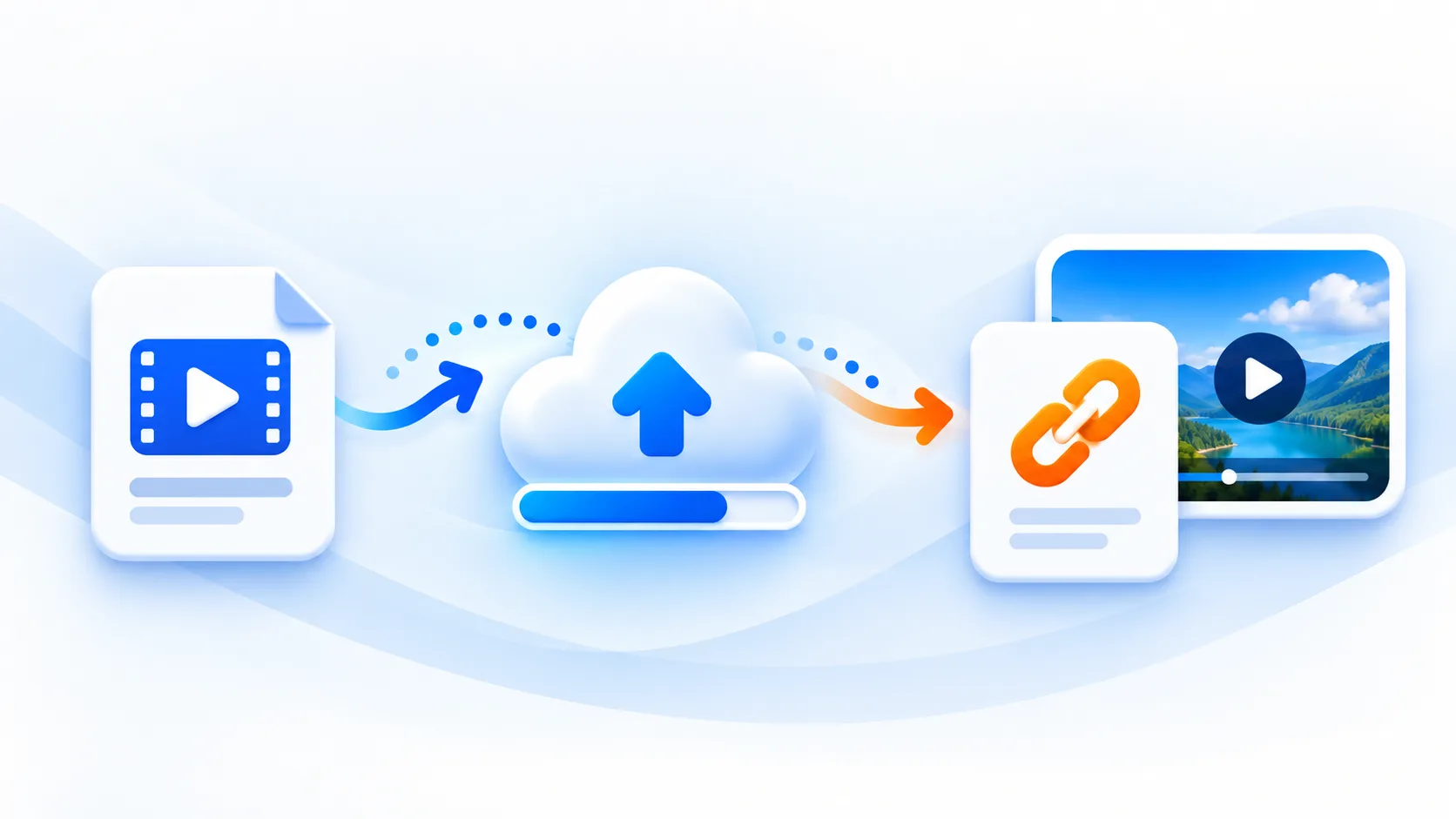
A useful video link starts with a suitable file and a clear destination. This guide helps Australian small businesses, community groups and creators prepare an upload, share the original file, add a player and diagnose common playback problems.
A useful video link starts with a suitable file and a clear destination. This guide helps Australian small businesses, community groups and creators prepare an upload, share the original file, add a player and diagnose common playback problems.
mp4tolink publishes the original uploaded file at a public URL, with a 100 MiB upload limit. It does not provide private viewing permissions, file version control, automatic transcoding, automatic thumbnails or built-in viewer statistics. Keep those boundaries visible when designing a publishing workflow.
1. Prepare the original file
Watch the complete recording before uploading. Remove personal details, client documents and background conversations. Give the file a descriptive name. Keep the original locally so you can export a corrected copy if someone spots a mistake.
2. Check size and playback
The upload limit is 100 MiB. MP4 is a container, so the extension alone does not prove a browser can decode the video. Test your export on an ordinary phone; H.264 video with AAC audio is a common starting point.
3. Upload and confirm the result
Open the upload tool, choose the file and leave the page open until it reports success. Connection speed affects the wait. Copy the returned address only after completion, then open it in another browser to confirm the file is accessible.
4. Give the recipient context
For example, a Melbourne repair workshop can send a one-minute maintenance demonstration after a booking. Explain what the clip demonstrates, how long it takes to watch and what feedback you need. A link without that context creates extra work for the recipient.
5. Embed a real media address
The example below uses a placeholder address: replace it with your actual media URL. Put the player on a page you control, add a short introduction and test keyboard playback. The service does not create a custom player page or automatic thumbnail for you.
<video controls preload="metadata" width="640">
  <source src="https://example.com/demo.mp4" type="video/mp4" />
</video>
6. Keep confidential material elsewhere
An uploaded file has a public URL. Anyone who receives or discovers it may be able to open and copy it. A hard-to-guess address is not authentication. Do not use this workflow for private contracts, medical details or restricted training recordings.
7. Troubleshoot the exact failure
If playback fails, open the URL directly, check that the upload completed and compare another browser. A chat application may show only a plain link. Missing previews do not necessarily mean the media is broken; preview behaviour belongs to the receiving platform.
8. Publish supporting text
Explain the important steps beside the player. For eligible clips, the local transcription tool processes up to five minutes in the browser; proofread names and numbers before publishing. Replacing an edited file requires a fresh upload and checking every published link.
MP4 to Link & Video to Link FAQs
Does uploading convert the video?
No. The public URL serves the original uploaded file; automatic transcoding and thumbnail creation are not included.
Is the link private?
No. Treat the uploaded file as public and use a service with real access controls for confidential material.
How large can the file be?
The upload limit is 100 MiB. Check the current upload screen and reduce the file before retrying.
mp4tolink Team
View profile