Share a PDF Link or Send an Attachment? A Practical Decision Guide
Choose between a public PDF link and an attachment, prepare accessible documents, track revisions, and add a useful fallback when embedding a PDF.
A restaurant menu, a public course outline, and a signed customer contract may all be PDFs, but they should not automatically use the same sharing method. Choose based on who may read the document, whether a fixed copy matters, and how readers will reach it.
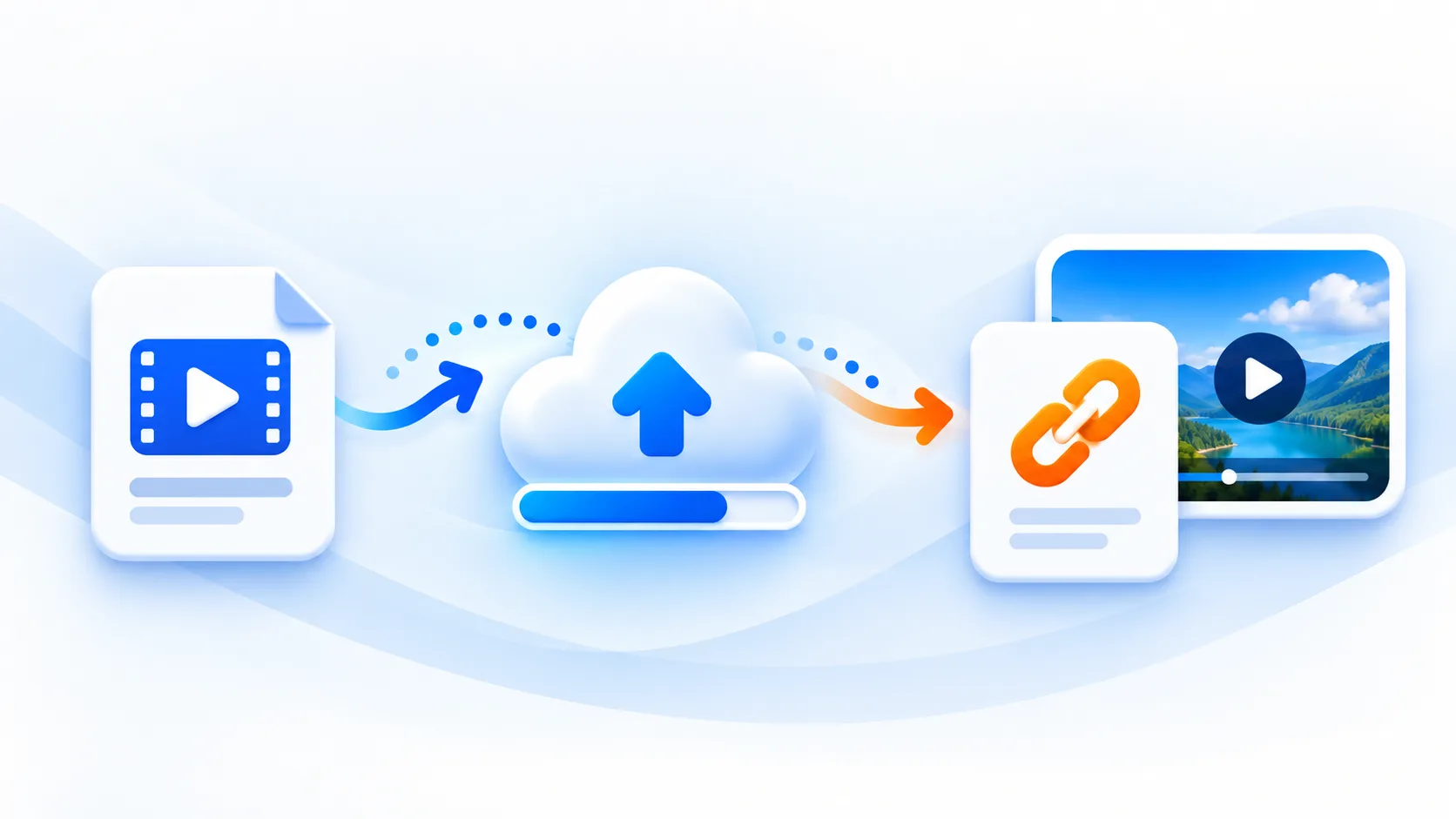
PDF to URL turns an uploaded PDF into a public link. The current public page accepts PDFs up to 10 MiB, with request limits, daily upload allowance, and storage availability also applying. Its result includes a raw URL plus Markdown, HTML link, and BBCode snippets. It does not turn the document into a private review room or a managed document-version system.
Decide what the recipient needs
| Situation | Practical choice | Check before sending |
|---|---|---|
| A brochure intended for anyone | A public PDF link can fit | Publication approval, current revision, readable content |
| A recipient needs an offline snapshot | An attachment may fit | Mail-system limits and whether the recipient can open it |
| A document contains confidential information | A suitably controlled delivery service | Authentication, permissions, retention, and organizational rules |
| Readers need the latest announcement | A page you maintain with a clearly dated PDF link | Who owns updates and how old links will be handled |
| A long document is hard to use on a phone | Consider an HTML summary alongside the PDF | Essential information remains available outside the viewer |
A link keeps the message small and gives readers a place to retrieve the file. An attachment carries a particular copy with the message, which can help when offline access is expected. Both can be forwarded. Neither choice, by itself, prevents a recipient from redistributing the content.
Avoid a universal rule such as “always send links.” A public menu and a personnel record have different access requirements even when their file sizes are identical.
Prepare the document before publishing
Export the intended revision with an identifiable filename, such as community-workshop-outline-2026-10-v02.pdf. Put the date or revision inside the document too; a downloaded copy may later be detached from its original message.
Check page count, working links, and whether text can be selected. A scanned image of text may need OCR and further review. Selectable text alone does not establish accessibility: headings, document tags, reading order, link descriptions, and keyboard navigation also matter.
W3C's PDF guidance explains why a visually correct multi-column layout can still have an incorrect reading sequence for assistive technology. Review the document in its authoring or PDF editing tool, and test the actual reading experience. Uploading changes where the file is available; it does not repair its structure.
Remove information you did not intend to publish, including visible annotations and sensitive document properties. Use a proper redaction workflow where removal is required, then inspect the final export. Covering text with a decorative rectangle is not a reliable privacy workflow.
Publish and verify the direct link
Upload the final file, copy the returned URL, and open it in a signed-out browser. Confirm the first and last pages, a representative internal link, and the intended revision. Check on a phone as well as the device used to prepare the file.
Use descriptive link text when placing the URL on a page or in a message:
<a href="https://example.com/workshop-outline-v02.pdf">
  Read the October workshop outline (PDF, revision 2)
</a>
The example address is a placeholder for your returned URL. Including format and revision helps a reader understand what will open. File size is also useful when accurately measured, especially for mobile readers.
If upload fails, distinguish an unsupported file or size problem from a 429 allowance/rate response or a temporary 503 storage-capacity response. Correct the source for validation errors; wait for the applicable restriction or availability issue to recover for the latter cases. Do not interpret a failed attempt as a published document.
Treat revisions as separate copies
In this upload workflow, publishing an edited PDF creates a separate result. Uploading outline-v03.pdf does not establish that the earlier URL now serves revision 3. Keep a small local register containing filename, revision, returned URL, publication date, and the pages or messages where you shared it.
After publishing a correction, update the links in places you control and tell recipients when the difference matters. You cannot assume an old email, downloaded attachment, or forwarded public URL will change automatically. For frequently revised material, a stable page on your own site can explain which PDF is current, while each uploaded PDF remains a separate copy.
Keep your source document and a local PDF backup. A successful upload is not a permanent-storage guarantee, and this workflow does not promise automatic deletion of old copies.
Embed only with an independent fallback
An iframe can display another document within your page, but PDF handling varies with the browser, device, and viewer settings. Give the frame a descriptive title and keep a normal link outside it:
<iframe
  src="https://example.com/workshop-outline-v02.pdf"
  title="October workshop outline, revision 2"
  width="100%"
  height="640">
</iframe>
<p>
  <a href="https://example.com/workshop-outline-v02.pdf">
    Open the workshop outline PDF separately
  </a>
</p>
The external link remains available when embedded viewing is inconvenient. It may open a browser viewer or download according to the recipient's setup; avoid promising identical behavior everywhere. Test keyboard access and a narrow screen, and put critical instructions in ordinary page text when readers need them before opening the PDF.
The final check is about the recipient's task: can the intended audience find the correct copy, understand its status, and read it using their preferred tools? That is more useful than choosing a sharing method solely because it looks cleaner in an email.
Official references
MP4 to Link & Video to Link FAQs
Is a PDF link private if I share it with only one person?
No. A public PDF URL can be opened and forwarded by anyone who receives it. For confidential documents, choose a service with the access controls your situation requires instead of relying on an unlisted public link.
Can I replace a PDF while keeping the same generated URL?
The standard PDF-to-URL upload workflow creates a separate upload for a revised file; it does not provide managed replacement at the same URL. Track revisions yourself and update links in places you control.
Does hosting a PDF make it accessible?
No. Hosting provides a way to reach the file. Reading order, tags, selectable text, meaningful links, and other accessibility requirements must be checked in the document and its authoring workflow.
mp4tolink Team
View profile