Video to URL: Complete Step-by-Step Guide for Fast Sharing in 2026
Learn how to convert video to URL in minutes. This 2026 guide covers upload workflows, URL types, SEO basics, and sharing tactics for creators, marketers, and businesses.

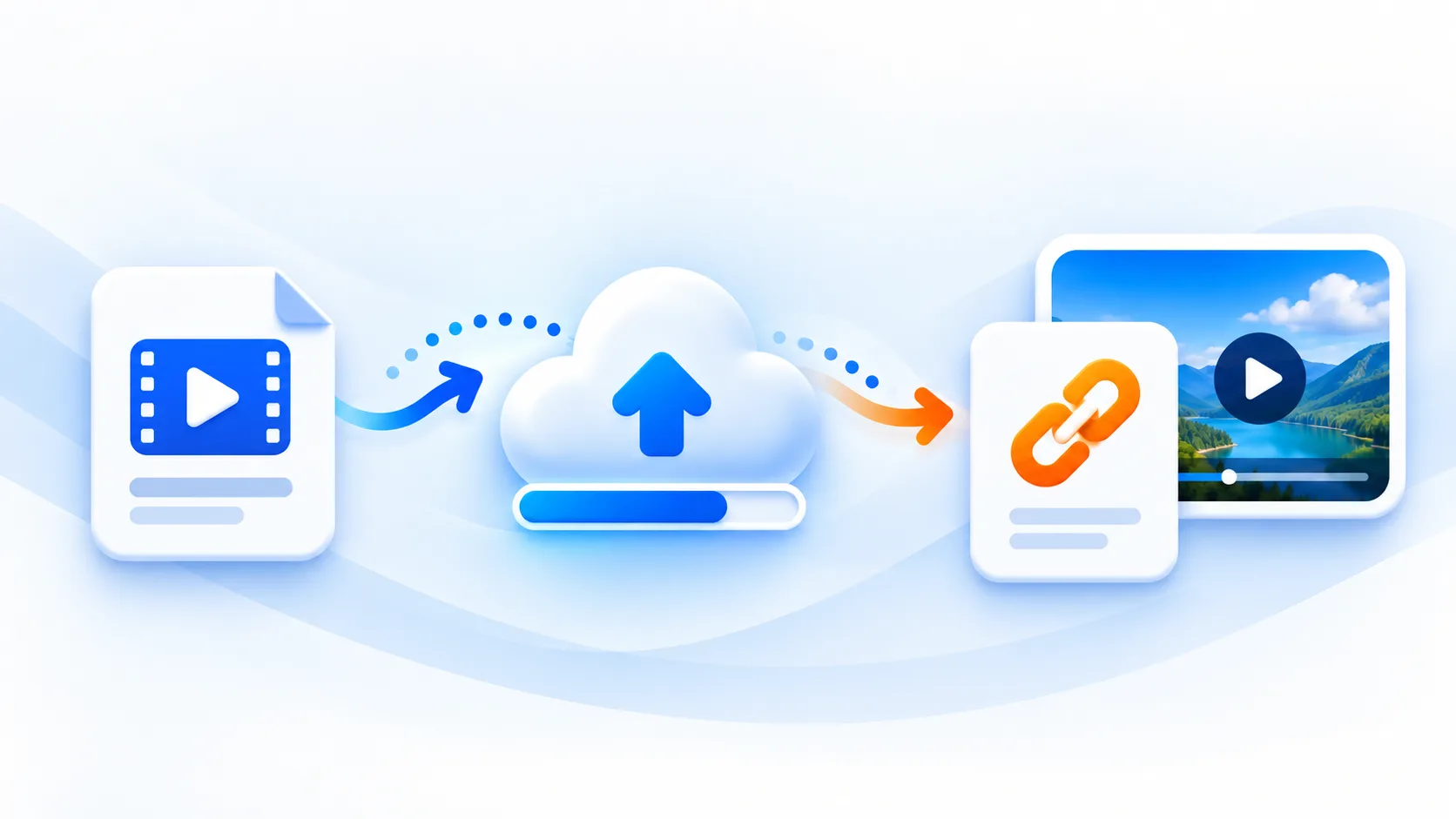
If you are still sending video files as attachments, you are slowing down distribution, collaboration, and campaign speed. A clean video to URL workflow turns a supported video file into a link you can share after the upload finishes across websites, social media, email, and chat.
This guide explains exactly how to go from raw file to optimized URL, with practical SEO steps you can apply right away.
What Is "Video to URL"?
Video to URL is the process of:
- Uploading a video file
- Letting the platform process and host it
- Receiving a public or private URL
- Sharing or embedding that link anywhere
A direct file URL points to one uploaded file. In mp4tolink, uploading an edited version creates a separate upload; the tool does not provide version replacement at the same URL.
Why a Video URL Workflow Matters
Operational Benefits
- Faster sharing with clients and teams
- Lower friction for viewers on mobile and desktop
- Clearer organization when each revision has its own filename and URL
- The option to measure activity on your own landing page with separately configured analytics
Growth Benefits
- More places to distribute the same video
- Better indexing opportunities for search engines
- Cleaner campaign tracking with UTM parameters
- Higher reuse across landing pages and content hubs
The mp4tolink workflow and its limits
Use Video to URL for a supported video up to 100 MiB. Daily upload allowance, request limits and available storage also apply. The URL is public: anyone who receives it can open the file. Do not use public uploads for confidential customer recordings or material you are not allowed to share. Keep a local backup; a generated URL is not a permanent archive.
After uploading, test the URL in a signed-out browser and on the type of device your audience uses. An MP4 filename alone does not prove that the video uses a compatible codec. H.264 video with AAC audio is a practical export choice for many players. A local MOV-to-MP4 conversion is a separate step and does not publish the result.
To place your own uploaded file on a website, replace the example URL below with your result:
<video controls preload="metadata" src="https://example.com/demo.mp4"></video>
For a plain message, send the URL with a short description. Do not promise an automatic preview: chat and social services choose whether to show a player, card or ordinary link. If upload fails, check the size and format, then distinguish a 429 quota/rate response from a temporary 503 capacity response. Avoid repeatedly submitting the same file while a request is still running.
Step-by-Step: Convert Video to URL
Step 1: Prepare the Video File
Before upload, make sure your file is ready:
- Format: MP4 (H.264) is usually safest
- Resolution: 1080p for most marketing use cases
- Length: Trim intros and dead space
- Audio: Normalize volume for clear playback
- Naming: Use descriptive filenames (for example,
video-to-url-product-demo.mp4)
Step 2: Upload and Process
Upload your file to your hosting platform. During processing, most tools will:
- Create streaming-friendly versions
- Generate thumbnails
- Optimize playback for different devices
- Produce one or more share URLs
Step 3: Choose the Right URL Type
Different campaigns need different link types:
| URL Type | Best Use Case | SEO Impact |
|---|---|---|
| Public page URL | Blog posts, landing pages | Strong when page text is optimized |
| Embed URL | Product pages, docs, tutorials | Helps engagement and time-on-page |
| Direct file URL | Internal workflows, downloads | Limited SEO on its own |
| Private token URL on a service that provides access controls | Restricted reviews | Depends on that service; mp4tolink public uploads do not provide this feature |
Step 4: Add Metadata and Context
A video URL alone is not enough. Add:
- A keyword-focused page title
- A concise description with primary and secondary search terms
- A text summary or transcript
- A visible call-to-action near the video
Search engines evaluate surrounding context, not only the media file.
Step 5: Distribute and Track
Publish your video URL across:
- Blog content
- Email newsletters
- Social posts
- Product onboarding flows
- Sales follow-up sequences
Add UTM tags to your own landing-page links and configure analytics there. Adding parameters to a raw media URL does not create a built-in views report.
SEO Checklist for Video URLs
Use this quick checklist before publishing:
[] URL slug includes target keyword (video-to-url)
[] Page title includes clear search intent
[] Meta description explains the benefit in one sentence
[] Video has supporting text or transcript
[] FAQ section answers user intent questions
[] Structured data is added when possible
[] Internal links point to related pages
Common Mistakes to Avoid
1. Uploading Without a Landing Context
A bare link with no meaningful page content usually performs poorly in organic search.
2. Using Generic File Names
final_v2_reupload.mp4 does nothing for organization or discoverability. Use descriptive naming conventions.
3. Ignoring Mobile Playback
If your video page loads slowly on mobile, users bounce fast and rankings can suffer.
4. No Tracking Parameters
Without UTM and event tracking, you cannot identify which placements generate results.
Recommended Workflow for Teams
For repeatable execution, standardize this process:
- Record or edit the source video
- Upload to your video-to-URL platform
- Generate public and embed links
- Publish on an optimized landing page
- Distribute with channel-specific UTM tags
- Review analytics weekly and iterate
This single workflow can support content marketing, product marketing, support documentation, and paid campaigns.
Final Takeaway
The best video to URL strategy is not just technical upload. It combines hosting, page optimization, and measurable distribution. If you build this as a repeatable system, every video becomes a scalable SEO and growth asset instead of a one-off file.
MP4 to Link & Video to Link FAQs
What does video to URL mean?
Video to URL means uploading a video file to a hosting platform and generating a direct or shareable link. That link lets you publish, embed, or distribute the video without sending a large file manually.
How long does it take to convert a video to URL?
Most modern platforms can generate a video URL in under five minutes, depending on file size, internet speed, and processing settings such as compression and thumbnail generation.
Is a video URL good for SEO?
Yes, a video URL can help SEO when it is paired with optimized page titles, descriptive metadata, structured data, and relevant surrounding content such as transcripts and supporting text.
mp4tolink Team
View profile